
VirtualBuddy 2.2 Beta 6 macOS 轻量级Apple Silicon macOS虚拟化测试工具
放心试跑各类macOS版本
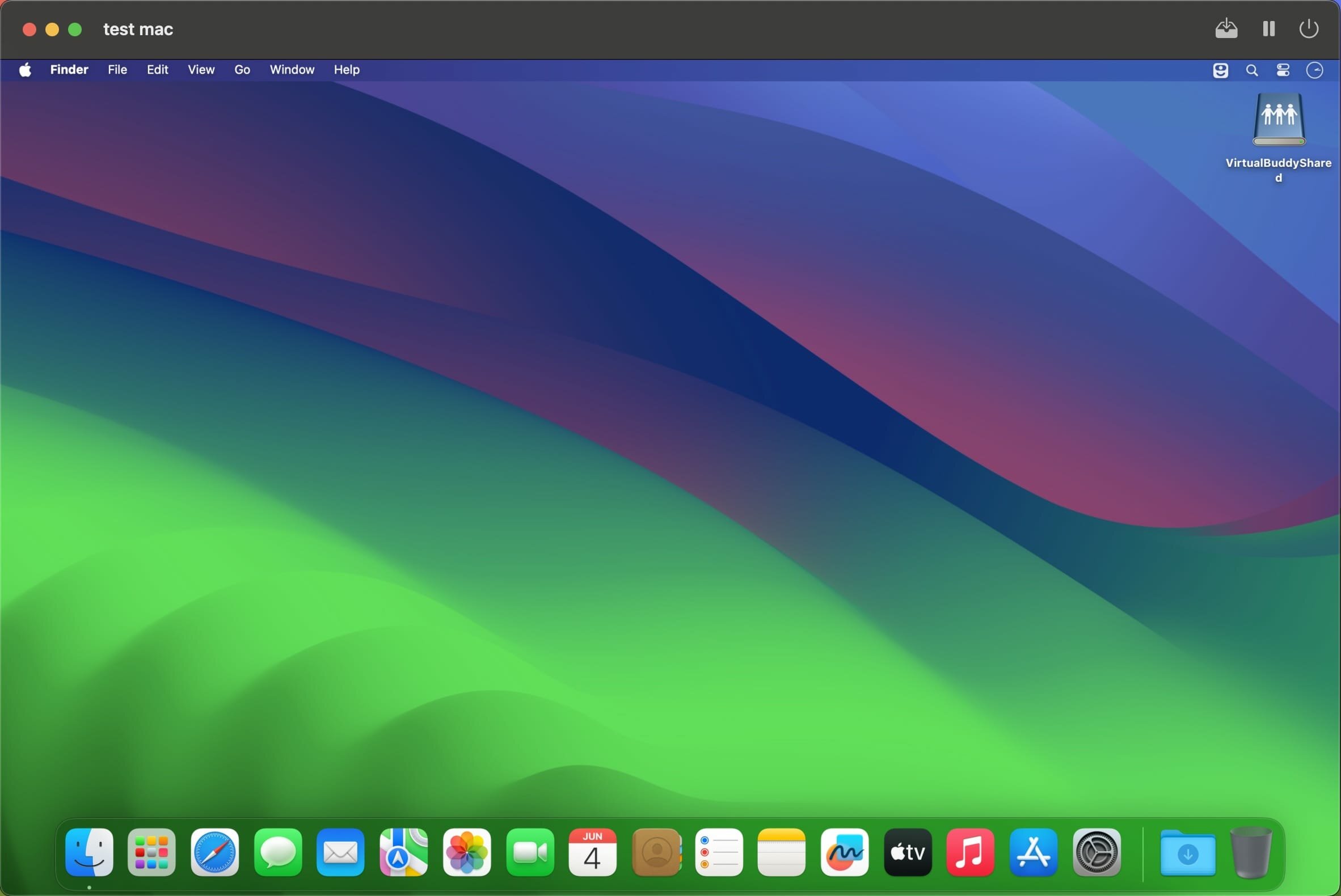
VirtualBuddy 让你在 Apple Silicon Mac 上轻松运行 macOS 12 及更高版本的虚拟机,无需复杂配置。无论是为应用构建多版本兼容性测试环境、提前体验 macOS 公测版,还是随时准备一台“开箱即用”的纯净系统——它都能一键满足。
专为真实开发场景而生
开发者无需重装系统或牺牲主力工作环境,就能通过 VirtualBuddy 快速搭建多个独立的 macOS 虚拟环境:验证 App 在不同系统版本下的兼容表现、安全尝鲜新 OS 功能、甚至在隔离沙箱中大胆调试高风险操作。
- 原生 macOS 虚拟化:专为 Apple Silicon 优化,稳定运行 macOS 12 及后续所有正式版与预发布版。
- 深度 beta 测试支持:无缝接入 macOS 公测/开发者预览版,实时比对你的应用在各代系统中的响应逻辑与界面适配效果。
- 智能剪贴板互通:安装 VirtualBuddyGuest 后,Mac 主机与虚拟机间可自由复制粘贴文本、图片等任意内容,跨环境协作零断点。
- 即插即用共享文件夹:预设路径自动挂载,主机与虚拟机双向访问指定目录,开发资源同步快人一步。
- 毫秒级 APFS 克隆:在 Finder 中选中虚拟机磁盘,按 Command + D 即可生成轻量副本——底层复用数据块,几乎不占额外空间。
- 永不污染的洁净基线:始终保留一份原始镜像作为“黄金标准”,所有实验均基于克隆体进行,失败即删,重启即新。
- 系统级文件共享:直接调用 macOS 原生文件共享机制(File Sharing),无需额外配置服务或端口,安全又省心。
想改就改,想回就回
只需安装 VirtualBuddyGuest,即可激活剪贴板同步与共享文件夹自动挂载两大核心能力;再结合 APFS 克隆技术,你既能长期守护一台“出厂设置”虚拟机,又能无限次创建瞬时测试副本——彻底告别反复重装系统、等待恢复镜像的低效循环。
今天就开始你的 macOS 测试之旅
用 VirtualBuddy 快速构建稳定、灵活、可复现的 macOS 虚拟环境,覆盖日常开发、全链路 App 测试、以及前沿系统功能探索。

What's New
Version 2.2 Beta 6:
Save and Resume Virtual Machines
You can now save a running macOS virtual machine's state when closing its window or quitting VirtualBuddy, then resume where you left off. General settings let you choose whether to save state, shut down, or ask every time.
Saved virtual machines show the time they were saved in the library and virtual machine window. To keep a saved state for later, duplicate the virtual machine before resuming it.
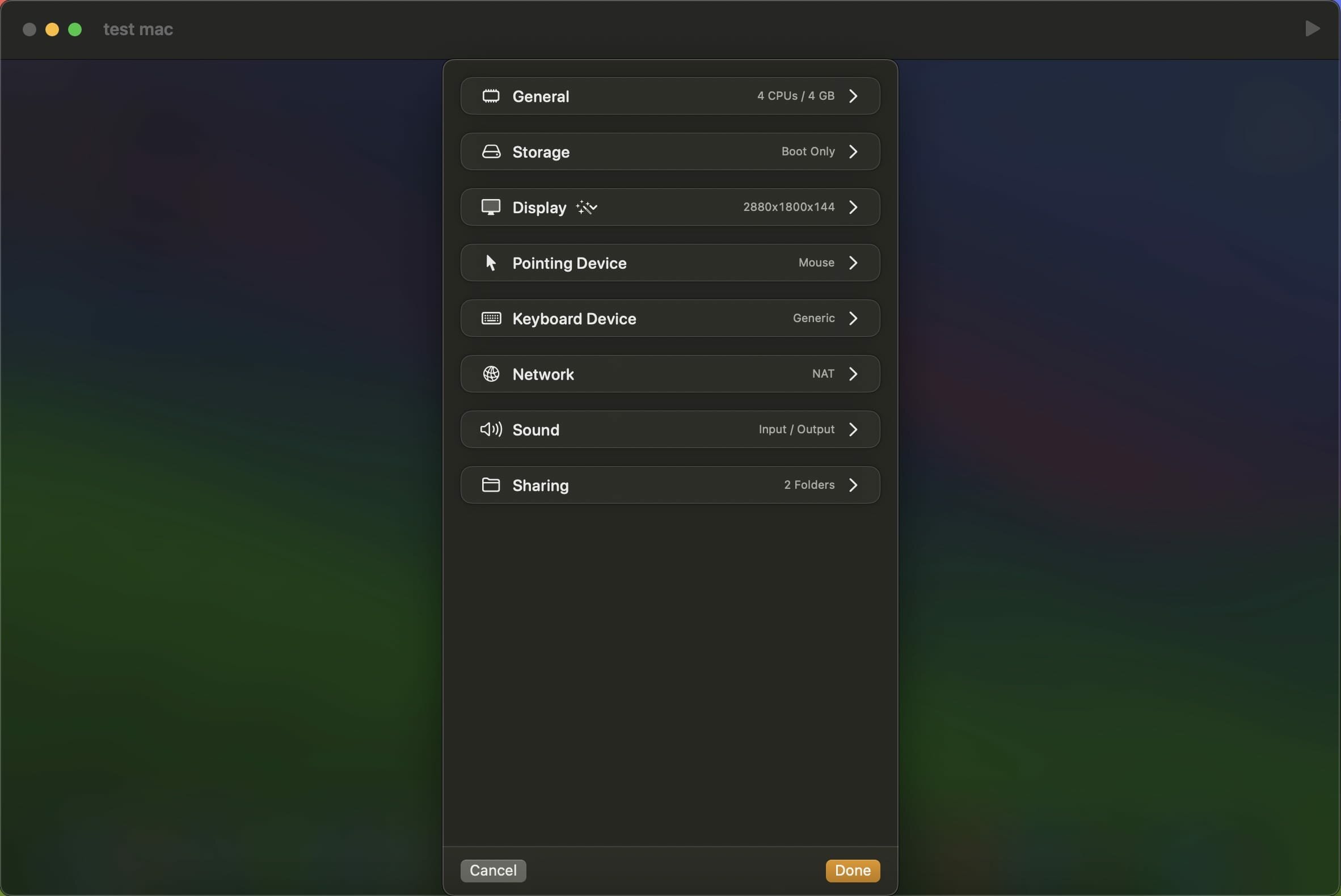
Saving requires a macOS guest, a storage volume that supports file cloning, and disk images stored inside the virtual machine. A new option in Storage settings lets you copy external disk images into the virtual machine. Saving isn't available while a USB device is attached or when starting up in recovery mode, DFU mode, or from an installation disk.
Saved states stay with the virtual machine on the same Mac. They don't preserve shared folder contents or network connections, and may become incompatible after macOS or VirtualBuddy updates.
Keyboard and Mouse Shortcuts
You can now turn input to the active virtual machine on or off by pressing and holding Control-Option-Command for two seconds for the keyboard, or Control-Option-Shift for the mouse or trackpad.
A new onscreen indicator shows progress while you hold the shortcut, confirms whether input is on or off, and displays shortcut reminders when you use the toolbar controls.
Other Changes & Improvements
- Fixes an issue where creating a virtual machine with a name already in use could overwrite an existing virtual machine. Setup now asks you to choose a different name.
- The virtual machine toolbar now shows VirtualBuddyGuest connection status, with instructions for installing or enabling the guest app.
- Shared folder settings now explain that VirtualBuddyGuest is needed to mount folders automatically, with an option to enable it when it's turned off.
- Turning off VirtualBuddyGuest in a macOS virtual machine's settings now also disables communication with an already installed guest app.
- You can now turn clipboard sharing on or off for Linux virtual machines in Sharing settings. VirtualBuddy also preserves this setting when importing a virtual machine from UTM. Clipboard sharing still requires a compatible Spice agent running in the Linux guest.