
DockDoor 1.41.0 macOS 窗口预览增强工具,让 macOS Dock 拥有实时缩略图、全局窗口切换与智能交互能力
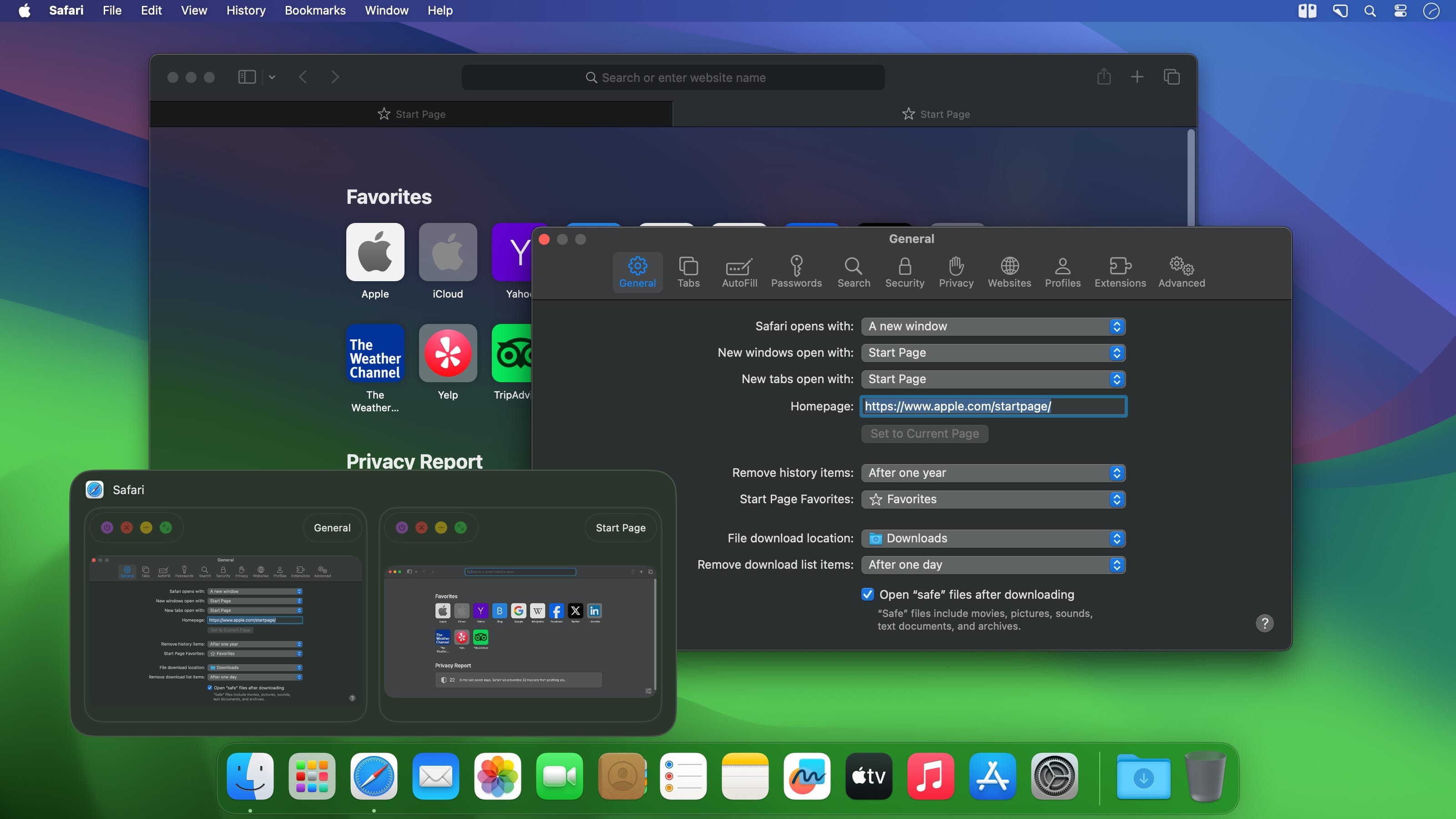
点击前先看清每个窗口——DockDoor 为 macOS 原生 Dock 注入实时窗口预览能力。只需将鼠标悬停在 Dock 中的任意应用图标上,即可即时查看它当前打开的所有窗口缩略图;点击任一缩略图,直接跳转至对应窗口;也可在预览界面中一键关闭、最小化、全屏或退出该应用。
无缝融入你每天都在用的 Dock
DockDoor 并非替代系统 Dock,而是一款轻量级原生 macOS 应用,常驻菜单栏,智能扩展系统自带 Dock 功能(macOS 26 及更高版本支持全新 Liquid Glass 视效)。无论窗口位于其他桌面空间、外接显示器、已被最小化或隐藏,统统精准呈现,绝不遗漏。
- 窗口预览增强:悬停任意 Dock 应用图标,即刻显示其全部窗口的动态缩略图,并集成关闭、最小化、全屏及退出按钮;中键单击缩略图可直接关闭该窗口,无需切换焦点。
- 真正意义上的全局 Alt+Tab:按住 ⌥ 键再连续按 Tab,即可浏览当前所有打开的窗口(不止是应用),松开即切换;支持键盘输入快速筛选,亦可在设置中自定义快捷键。
- Command-Tab 进阶模式:长按 ⌘ + Tab 时,系统原生应用切换器上方将同步浮现出当前高亮应用的所有窗口,所见即所得,精准定位目标窗口。
- 文件夹悬浮展开(Folder Pop):将鼠标悬停于 Dock 中的文件夹图标,即可即时预览其中内容,支持按名称、日期或类型排序,并可直接双击打开任意项目。
- 音乐播放控制中心:当 Spotify 或 Apple Music 正在播放时,悬停其 Dock 图标将自动切换为专属播放器界面,支持歌词同步显示(含时间轴高亮)。
- 紧凑标题列表模式:可选择始终以文字标题列表形式展示某应用的所有窗口,或在窗口数量较多时自动启用此模式,提升信息密度与可读性。
- 超大缩略图选项:自由调节预览尺寸,轻松区分外观相似的多个窗口(如多个浏览器标签页、同名文档等)。
- 手势交互新体验:在缩略图上双指左右滑动可快速最小化/最大化窗口;滚动鼠标滚轮于 Dock 图标可一键显示/隐藏对应应用;轻摇某个缩略图则自动最小化其余所有窗口。
- 极速退出快捷操作:按住 ⌘ 键并右键点击 Dock 图标,即可优雅退出该应用;若同时按住 ⌥ 键,则触发强制退出流程。
- 日程悬浮看板:悬停系统“日历”图标,立即展开今日剩余所有日程事件,时间、地点、提醒状态一目了然。
- 自动化友好支持:提供完整的 AppleScript 接口与命令行(CLI)工具,方便开发者或高级用户通过脚本控制预览行为、窗口切换逻辑及各类窗口操作。
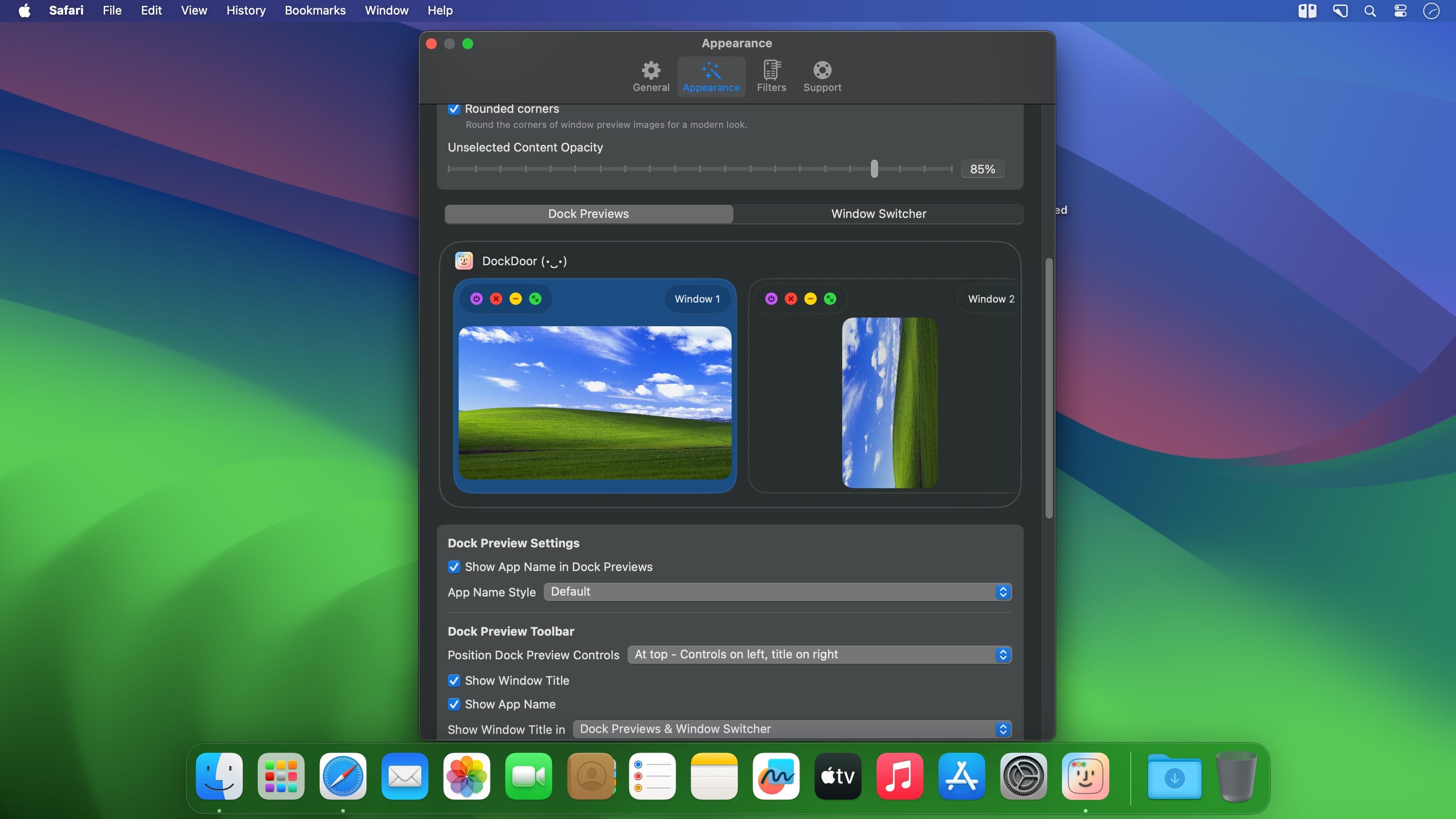
- 个性化视觉定制:支持三种风格主题——macOS 26+ 专属的 Liquid Glass(液态玻璃质感)、经典毛玻璃(frosted)与通透纯色(clear);还可精细调节缩略图大小、间距、圆角弧度及窗口控件位置。
- 隐私零妥协:全程离线运行,所有数据严格保留在本地 Mac 上。无远程服务器、无用户行为分析、无使用统计、无崩溃上报机制;调试日志默认不上传,仅当你主动导出时才会离开设备。
告别反复切换、盲目猜测哪个窗口才是你要找的那个。立即下载 DockDoor,在一瞥之间掌控 Mac 上每一个正在运行的窗口。
What's New
Version 1.41.0:
New Features
- Trackpad Window Gestures for title bars, Dock icons and the menu bar
- Off by default; turn on in Settings > Gestures, then restart DockDoor when prompted
- Title bar: swipe left or right to snap to a half, swipe up to fill the screen, swipe sideways then up or down to snap to a corner
- Title bar: swipe down to minimize, pinch in to close the window (or just the tab when you pinch a tab), pinch out for full screen, double-tap to center at the earlier size
- Running app's Dock icon: swipe down to minimize its front window, swipe up to restore its last minimized window, pinch in to quit
- Empty menu bar: swipe left or right to switch apps, swipe down to minimize all windows on that display, swipe up to restore them
- Menu bar: tap and hold, then swipe, to open the Window Switcher (requires the Window Switcher to be enabled)
- Press Escape mid-gesture to cancel
- A tooltip beside the cursor names the action as you gesture
- New Gestures tab with per-gesture controls
- Each gesture has its own on/off switch and an animated demo that plays when you hover over it
- Options group: Sensitivity slider, "Show where the window will land" snap-area preview, and Haptic feedback
- A banner warns when the needed trackpad settings (Zoom in or out for pinches, Smart zoom for double-taps) are off, with an Open Trackpad Settings button
- Reserve screen space for a custom dock
- Settings > Gestures > Space for a Custom Dock
- Choose the edge (Off, Bottom, Left, Right, Top) and a size from 10 to 300 px
- Snapped and positioned windows, title bar scroll centering and window positioning commands stay clear of it
- Dock apps can report their own reserved space, listed under Reported by Apps
- AppleScript command to reserve screen edges
- Example:
reserve screen edge "bottom" thickness 80 for "com.example.MyDock" on display "main" - Use "none" to release the space; it is also released when the app quits
- Listed in DockDoor's built-in scripting help
- Example:
- Export and import settings as a JSON backup
- Settings > General > Backup & Restore > Export Settings… or Import Settings…
Improvements & Stability
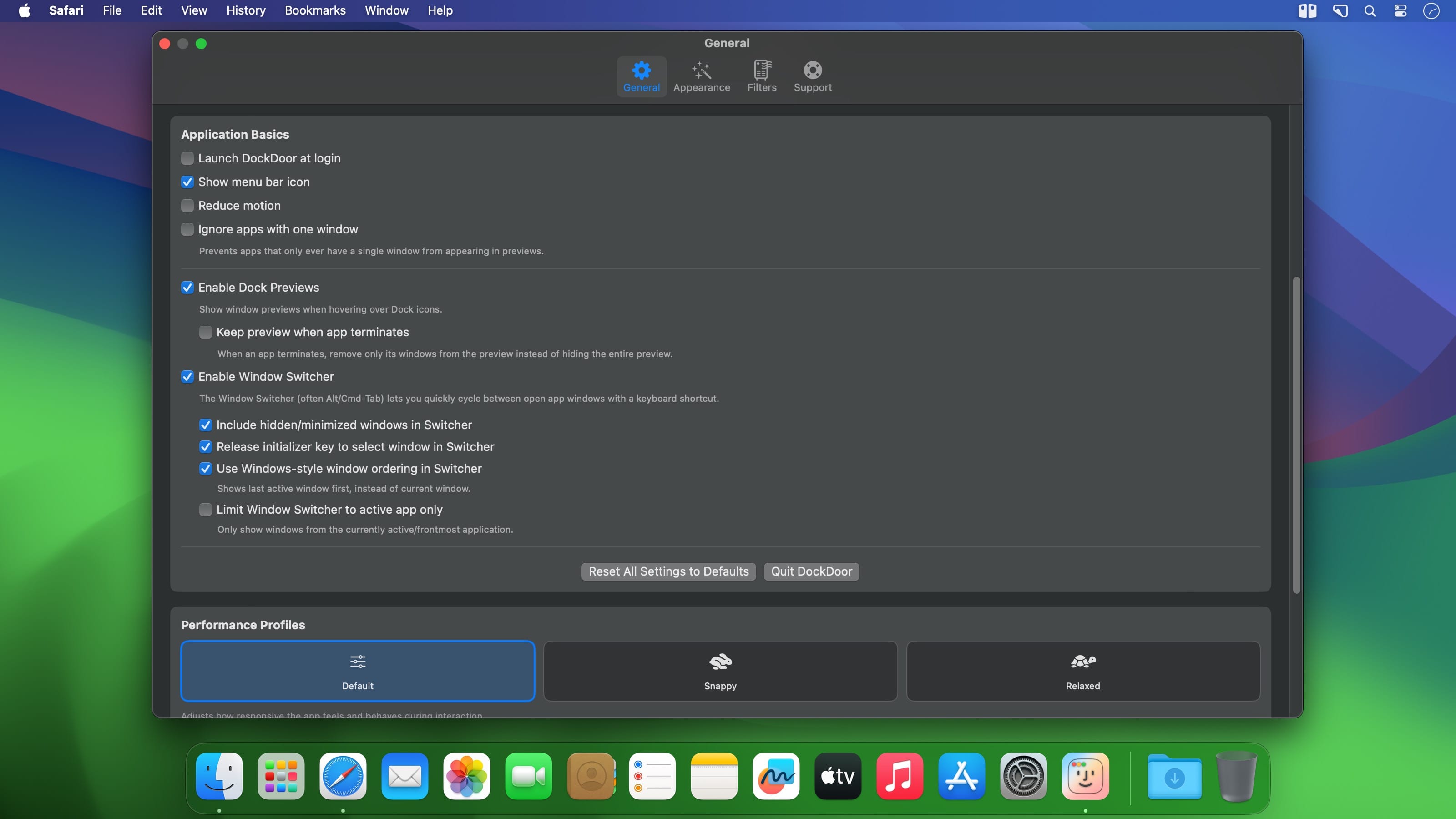
- Gestures and keybinds now have separate Settings pages
- Settings > Gestures holds all gestures, including Dock and title bar scrolling, dock preview swipes and the trackpad swipe window switcher
- Settings > Keybinds holds Mouse Actions, Command-key shortcuts and the Window Switcher keybind
- Settings search points to the new locations
- Adjust trackpad swipe window switcher sensitivity
- Find the swipe sensitivity slider under Trackpad Swipe for Window Switcher in Settings > Gestures (50%–200%, default 100%)
- Higher values respond to shorter swipes; lower values reduce accidental triggers
- Dock and title bar scroll gestures pause while Window Gestures is on
- Turn Window Gestures off to use them again
- Snapped windows stay linked
- Drag a snapped window's title bar to unsnap it and restore its size
- Drag the shared edge between snapped windows to resize them together
- Snapping and centering account for Stage Manager's side strip automatically
- Gestures respect reserved screen edges and use the same positioning as DockDoor's window actions
- Restoring from a Dock icon or the menu bar brings back the most recently minimized window, or every minimized window on that display
- Window gestures stay out of the way of DockDoor's preview windows, and previews hide when a Dock icon gesture runs
- Gesture tooltip matches DockDoor's look and sits closer to the cursor on multi-display setups
- Title bar detection is more reliable, so gestures work on more windows and apps
- Window switcher ordering is no longer shuffled by background app activity
- Website has a new Window Gestures section with a trackpad demo
- Updated translations in supported languages
Bug Fixes
- DockDoor now launches on macOS versions missing certain glass-effect system features
- Window switcher returns to the tab you selected in apps with native tabs, such as Finder and Terminal
- Tabbed windows are matched and shown correctly in previews and the switcher
- Active app indicator stays in place while a Dock icon bounces on bottom, left and right Docks
- Dock previews no longer appear for an icon you've already moved past
- Centering a window larger than the screen now fits it on screen
- Screen space reserved by other apps is released when they quit